Installing the WinConn Client for Windows Server Applications
TL;DR ✨
Windows applications can be accessed from Linux in two ways: from the command line or through applications. This article demonstrates the second approach, which is more useful in practice.
Download this program. Opening it takes the user to the WinConn application in the Ubuntu Software Store. Download and open that application.
From the archive
This article was first published on 2017-08-27. It is also a snapshot of its time, so some details and recommendations may no longer reflect the current situation.
Windows applications can be accessed from Linux in two ways: from the command line or through applications. This article demonstrates the second approach, which is more useful in practice.
Overview of the series:
- Configuring the domain controller
- Configuring RDS (Remote Desktop Services)
- Configuring the RemoteApp service and demonstrating how to launch services on Windows clients
- Installing the WinConn client (a freeRDP modification) to run applications on Linux
🔍 Part 4 — Installing the WinConn client to run applications from a Windows server on Linux
Download this program. Opening it takes the user to the WinConn application in the Ubuntu Software Store. Download and open that application.
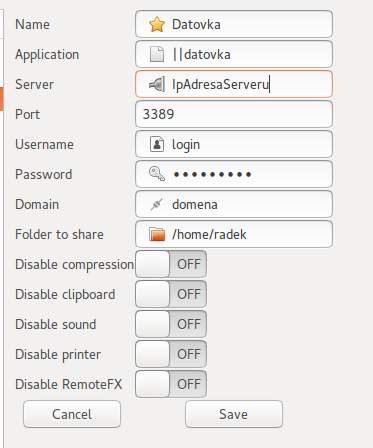
Configure remote access to the application to be opened, using the following settings:
- Name: application name
- Application: Enter it in the format ||Alias
- Server: server IP address
- Port: 3389
- user: user
- password: password
- Domain: domain
- folder to share: Any folder will do; for example, create a new
remoteAppdirectory and enter its path here
The remaining settings can be left disabled or at their defaults.
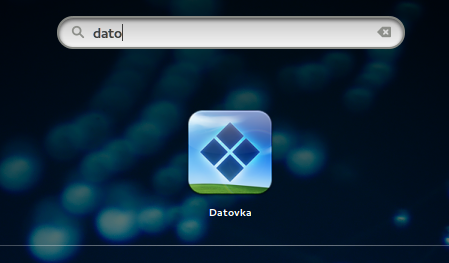
That is all. After the launcher is opened, the application appears as a program in search:
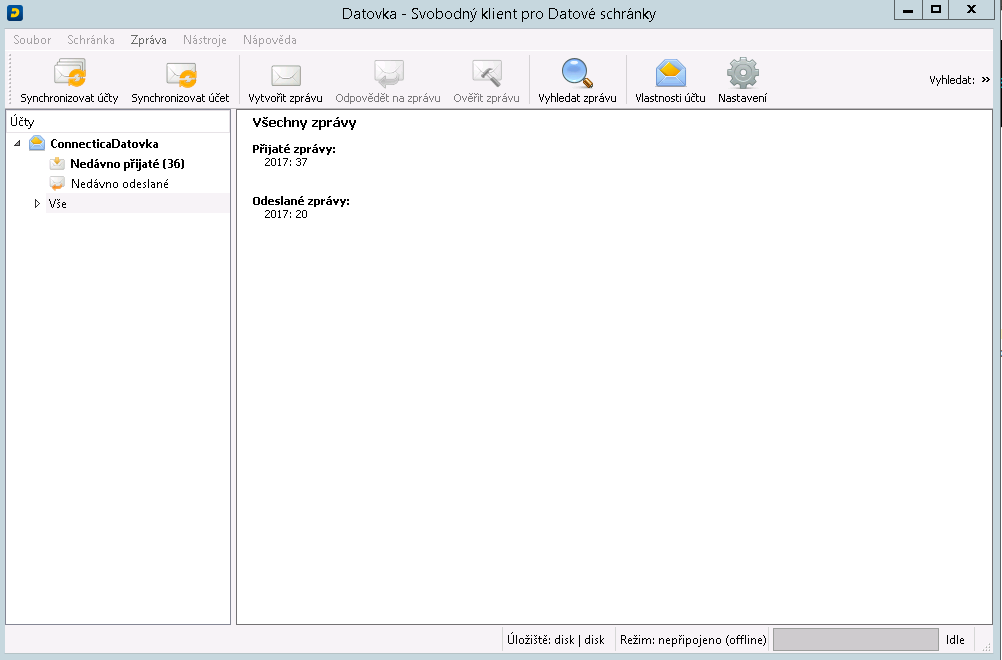
Clicking it provides access to the data stored on the server. In this example, the Czech Data Box application was configured as the test program.