Configuring RemoteApps on Windows Server 2012 R2
TL;DR ✨
RemoteApp is a service that makes programs installed under individual user accounts on a Windows server available to those users as a service on any machine.
To add another application, select tasks - publish RemoteApps programs, then choose the program that should be made available:
From the archive
This article was first published on 2017-08-27. It is also a snapshot of its time, so some details and recommendations may no longer reflect the current situation.
RemoteApp is a service that makes programs installed under individual user accounts on a Windows server available to those users as a service on any machine.
Overview of the series:
- Configuring a Domain Controller
- Configuring RDS (Remote Desktop Services)
- Configuring the RemoteApp service and demonstrating how to launch services on Windows clients
- Installing the WinConn client (a modified version of FreeRDP) to launch applications on Linux
🔍 3. Configuring RemoteApps on Windows Server 2012 R2
Open Server Manager, click Remote desktop services, and then select QuickSession collection. The individual published applications are shown there. Important: note the application aliases; they will be used shortly for remote access.
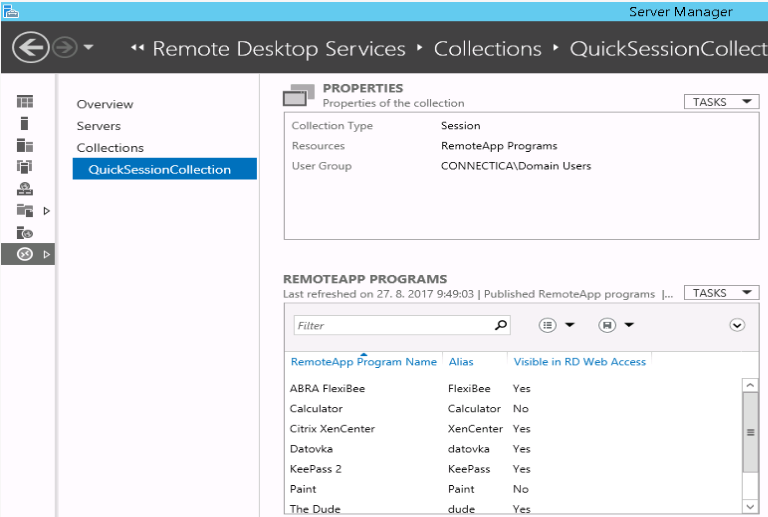 Remote apps
To add another application, select tasks - publish RemoteApps programs, then choose the program that should be made available:
✨ A
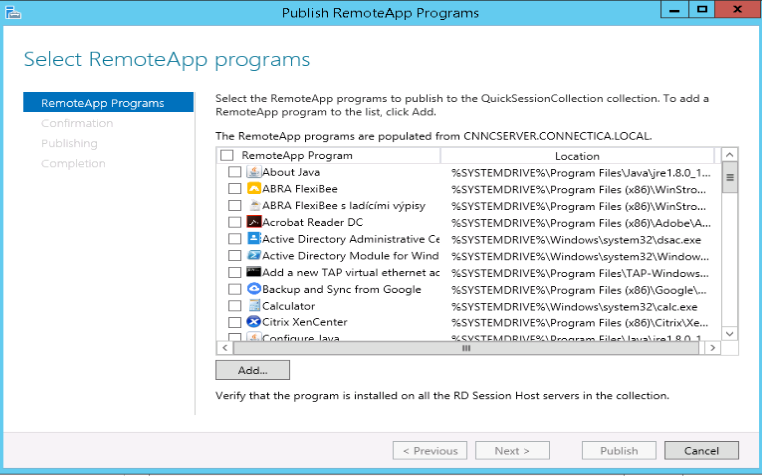 Selecting an application
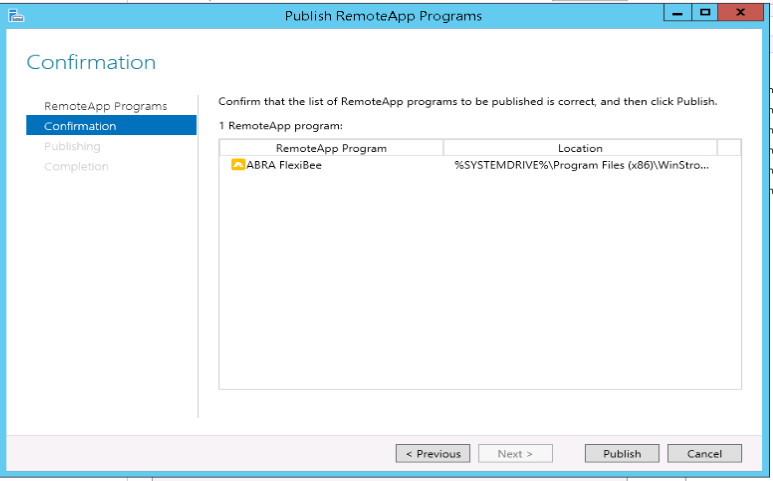
Then publish it:
To access the application through the web, enter https://IP/RDWeb in the URL. A login page will appear:
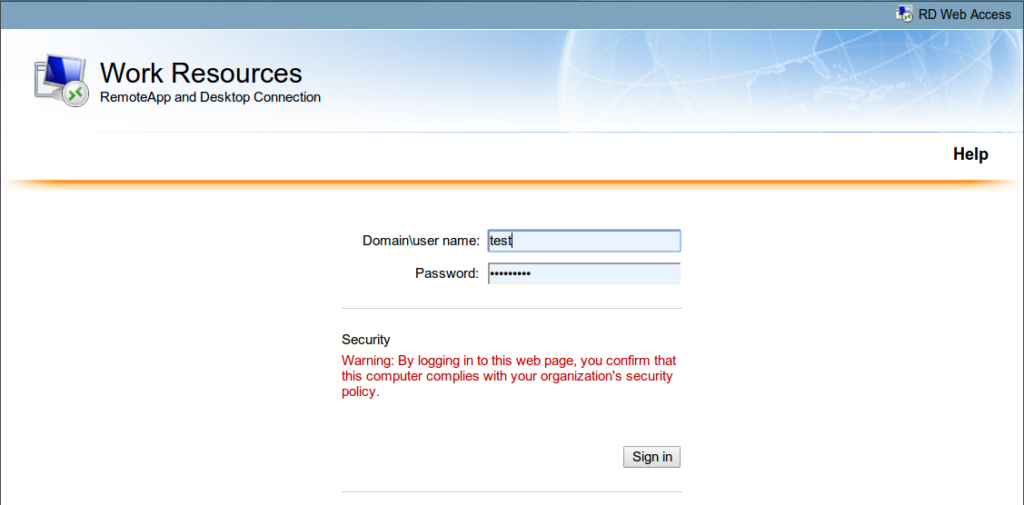 RDWeb login page
After signing in, all permitted applications are displayed:
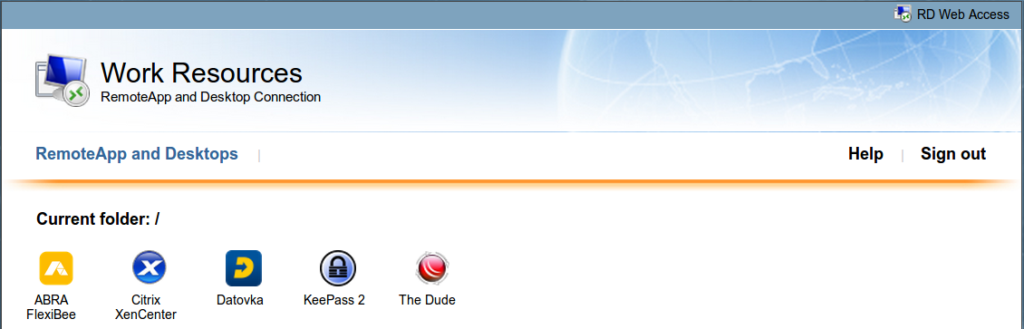 Work resources
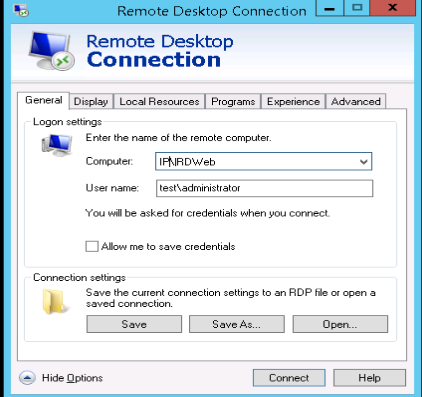
To access the applications from another Windows computer, enter mstsc in the Start menu, open the program, and click the down arrow for advanced options. In the General section, enter IPaddress\RDweb, then fill in domain\login and the user's password:
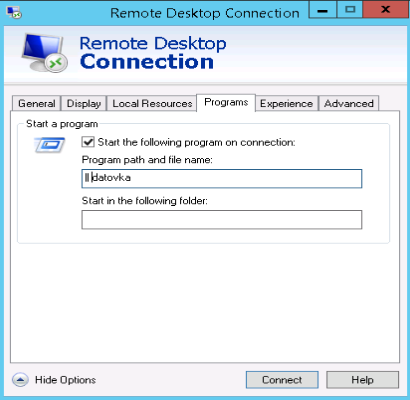
Select the Programs section, check start the following program connection, and enter the alias of the program to be launched.
Similarly, installing the Microsoft Remote Desktop application makes it possible to configure access to remote resources from a phone.
The iOS application is available here: https://itunes.apple.com/us/app/microsoft-remote-desktop/id714464092?mt=8,
The Android application is available here: https://play.google.com/store/apps/details?id=com.microsoft.rdc.android&hl=cs
Detailed configuration instructions can be found at this link: https://www.howtogeek.com/howto/26506/remote-desktop-to-your-windows-computer-from-your-iphone-ipad-or-ipod-touch/, or a video guide is available on YouTube: https://www.youtube.com/watch?v=RgHcwrF1ehU
For information on configuring access through Linux, continue to Part 4 in the next article: http://radekvymazal.cz/winconn-linux/