Backing Up Windows Server 2012 R2
TL;DR ✨
If you do not want to pay for commercial software right away, Microsoft gives you two tools that are more than usable for many small companies, labs, and internal environments:
If a full backup equals 1 liter, then repeated full backups fill the bucket quickly. Differential and incremental backups consume less space because they store only changes, but each does it in a slightly different way.
🧩 Introduction
Backing up Windows Server is usually not a dramatic task.
If you do not want to pay for commercial software right away, Microsoft gives you two tools that are more than usable for many small companies, labs, and internal environments:
- Windows Server Backup
- wbadmin
Before following the interface steps, it helps to refresh the theory.
📚 A Very Short Backup Theory Refresher
There are three main backup approaches:
- Full
- Differential
- Incremental
Imagine a bucket with a capacity of 10 liters. That bucket is your storage.
If a full backup equals 1 liter, then repeated full backups fill the bucket quickly. Differential and incremental backups consume less space because they store only changes, but each does it in a slightly different way.
The original article used this simplified comparison:
| Day of the week | Full backup | Differential | Incremental |
| Sunday | 1 full backup = 1 liter | 1 full backup = 1 liter | 1 full backup = 1 liter |
| Monday | 1 full backup = 1 liter | Difference against Sunday = 0.1 liter | Difference against Sunday = 0.10 liter |
| Tuesday | 1 full backup = 1 liter | Difference against Sunday = 0.15 liter | Difference against Monday = 0.05 liter |
| Wednesday | 1 full backup = 1 liter | Difference against Sunday = 0.2 liter | Difference against Tuesday = 0.05 liter |
By Thursday morning that means:
- Full backups: about 4 liters used
- Differential backups: about 1.45 liters used
- Incremental backups: about 1.2 liters used
Pros and Cons
Full backup
- easy restore
- straightforward logic
- higher storage consumption
Differential backup
- more storage-efficient than full
- still relatively easy to restore
- grows over time until the next full backup
Incremental backup
- smallest storage footprint
- efficient for frequent backups
- restore chains are more fragile because you depend on multiple steps
In practice there are many variations and optimizations on top of that. On Linux, for example, you can play with hardlinks and tools such as rsnapshot. The same principle applies here: choose the method based on how critical the data is and how much restore complexity you are willing to tolerate.
One caution from the original article is still worth repeating: Microsoft literature has historically been inconsistent enough that people sometimes mix up differential and incremental terminology. Always verify what the author actually means.
🪟 Windows Server Backup
Windows Server Backup is a surprisingly friendly built-in backup tool. The GUI is simple, the workflow is understandable, and for many ordinary scenarios it does the job.
You can open it from Server Manager under Tools. If it is not installed yet, add it through Manage > Add Roles and Features.
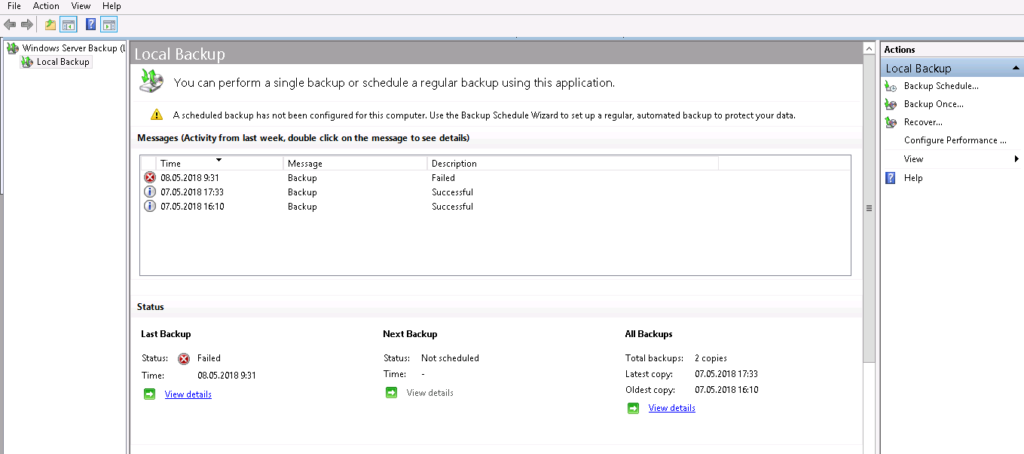
Example: One-Time Backup
To create a one-time backup:
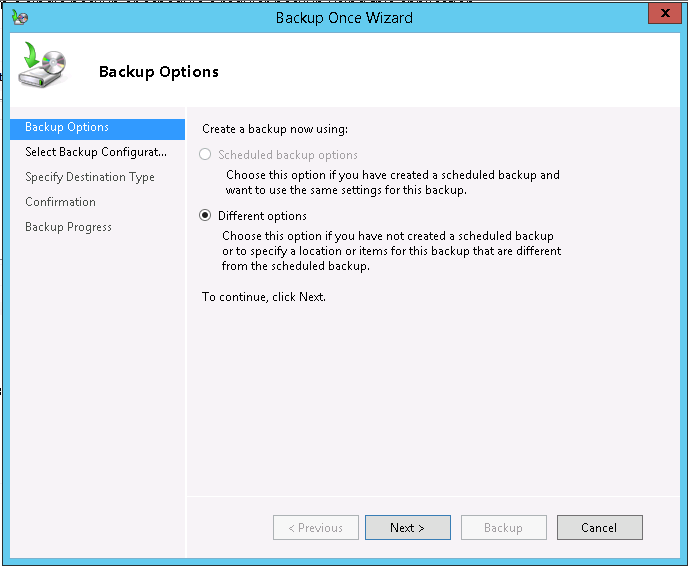
- Click Backup Once.
- Choose Different options.
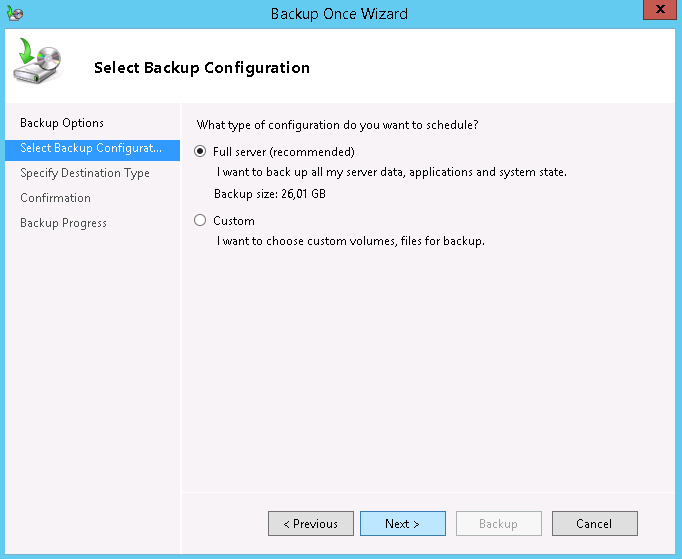
- Select Full server.
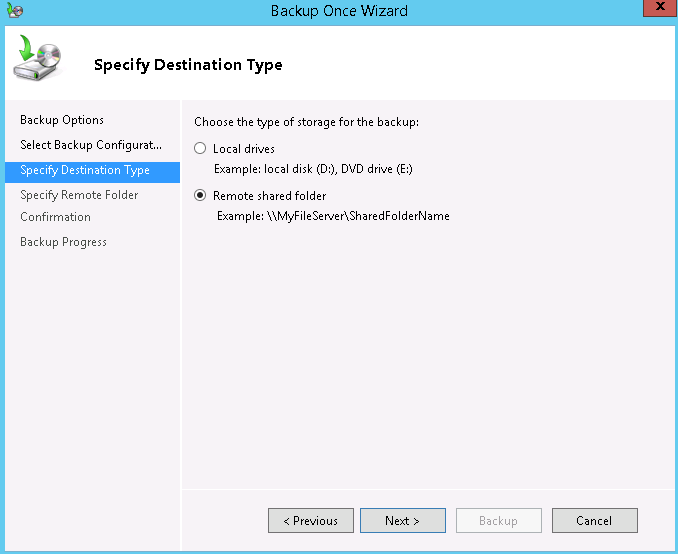
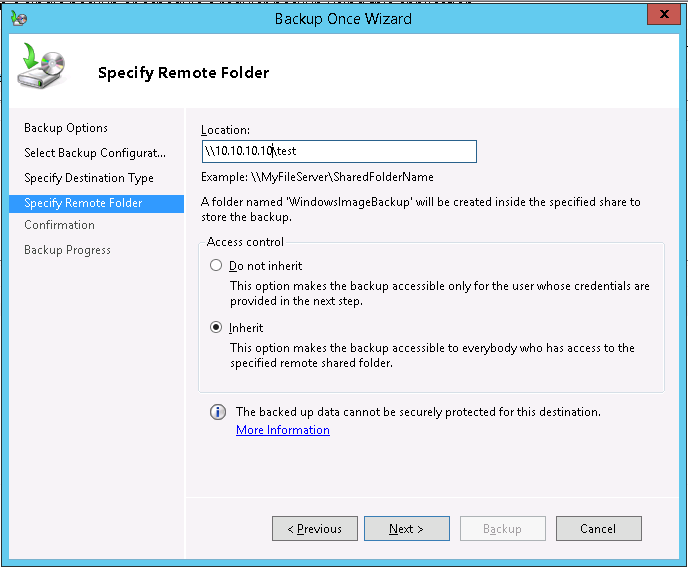
- Choose Remote shared folder as the destination.
- Enter the remote location, for example:
\\10.10.10.10\test
and keep access control inherited.
- Confirm and start the backup.
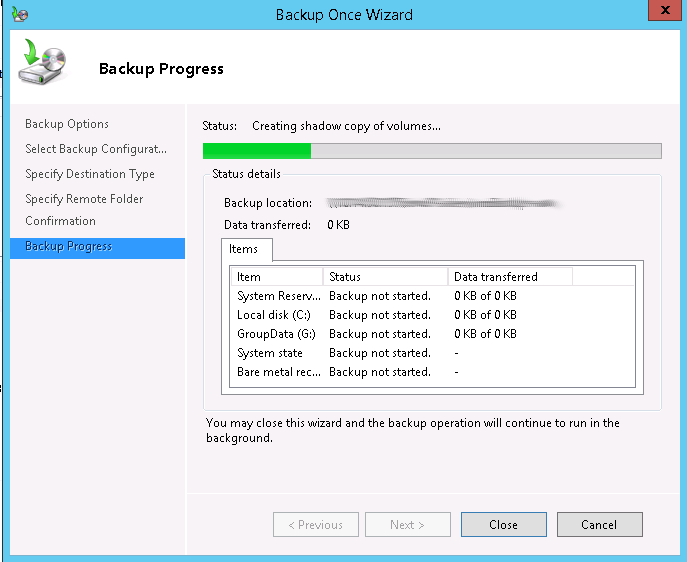
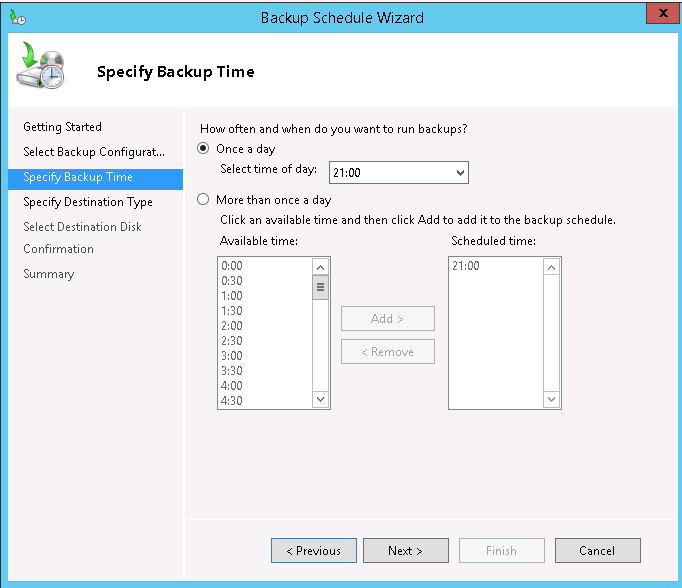
That gives you a one-off backup. In practice, Backup Schedule is usually more useful because it lets you define regular times and recurring execution.
🛠️ Troubleshooting: "System writer is not found in the backup"
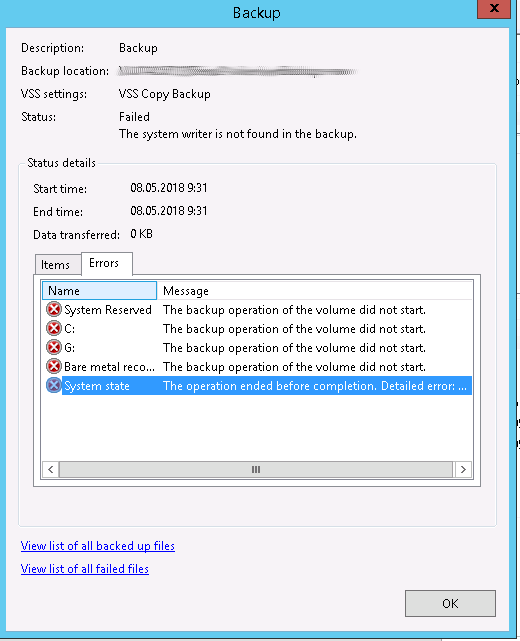
One common issue is the error:
System writer is not found in the backup
In the better cases, the problem can be fixed by repairing ownership and permissions around the affected system paths.
The original Microsoft-oriented workaround looked like this:
Takeown /f %windir%\winsxs\temp\PendingRenames /a
icacls %windir%\winsxs\temp\PendingRenames /grant "NT AUTHORITY\SYSTEM:(RX)"
icacls %windir%\winsxs\temp\PendingRenames /grant "NT Service\trustedinstaller:(F)"
icacls %windir%\winsxs\temp\PendingRenames /grant BUILTIN\Users:(RX)
Takeown /f %windir%\winsxs\filemaps\* /a
icacls %windir%\winsxs\filemaps\*.* /grant "NT AUTHORITY\SYSTEM:(RX)"
icacls %windir%\winsxs\filemaps\*.* /grant "NT Service\trustedinstaller:(F)
icacls %windir%\winsxs\filemaps\*.* /grant BUILTIN\Users:(RX)
net stop cryptsvc
net start cryptsvc
Then verify that the system writer is visible again:
vssadmin list writers
In the author's case, the error remained unresolved after several hours because the required file had already been irreversibly removed as malware. At that point, the GUI route ceased to be useful and the command line became necessary.
💻 Using wbadmin
The second built-in option is wbadmin from the command line.
Open cmd as Administrator and start with:
wbadmin /?
Useful commands:
Check existing backup versions:
wbadmin get versions
Check available disks:
wbadmin get disks
Start a one-time backup similar to the GUI example:
wbadmin start backup -backuptarget \\10.10.10.10\test -allCritical -vssFull
Simple, direct, and often easier to troubleshoot than a wizard.
For more options, see the Microsoft command documentation: https://docs.microsoft.com/en-us/windows-server/administration/windows-commands/wbadmin-start-backup
🧭 Final Thoughts
We went through the basics of one-time backups on Windows Server, both through the GUI and through wbadmin.
These tools can handle more than just one-off full copies. They also support recurring jobs and more advanced scenarios. Still, many administrators prefer commercial platforms such as Veeam or Acronis because restore flexibility and broader ecosystem support tend to be better there.
That said, if you are running a home lab, a test server, or a small internal environment, Windows Server Backup and wbadmin are absolutely worth knowing.