Home Wi-Fi Networking Options
TL;DR ✨
There are two things that can be done in networking: machines can either be bridged or placed behind NAT. There is no need to examine the theoretical difference here. A simple example will explain it.
Imagine a hypothetical worker on an assembly line who distributes incoming goods to other departments.
From the archive
This article was first published on 2016-01-10. It is also a snapshot of its time, so some details and recommendations may no longer reflect the current situation.
✨ A Little Theory
There are two things that can be done in networking: machines can either be bridged or placed behind NAT. There is no need to examine the theoretical difference here. A simple example will explain it.
Imagine a hypothetical worker on an assembly line who distributes incoming goods to other departments.
-
If his name is Mr. Bridge, he picks up the incoming goods and shouts to every other department, "Who is this for?" He forwards it to whoever answers. The rule is that everyone tells the truth and only the intended recipient responds. A supervisor can see who received the goods. So can the gossips working at the next conveyor belt: they see what went to whom.
-
If the worker's name is Mr. NAT, he takes the goods, repackages them, and sends them to the destination. The supervisor cannot see who received the goods, and the gossips next door are out of luck. They have nothing to talk about during their breaks.
If the explanation above is clear, then the difference between bridge mode and NAT is clear as well. It also follows that bridged networks are simple and practical up to a certain number of departments. They are transparent, fast, and efficient. They are not suitable for large networks—it is not a good idea for an ISP to run a bridged network—but they work well for small home networks.
A NATed network is more robust, complicated, and organized. It is not as fast, because repackaging goods is a complex process. NATed networks are useful at home when the residents do not want their ISP to see which devices they have. With the differences now clear, it is time to look at how to set everything up at home.
✨ Simple Architectures
✨ Antenna Connected to a PC
This is the simplest connection option. The ISP supplies an antenna, and its cable is plugged into the PC.
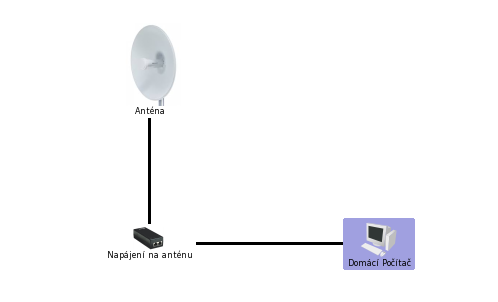
But what if a PC needs to remain connected while a tablet, phone, laptop, and other devices also need access? That is when a router is useful. There are two common ways to connect it. For simplicity, assume there is an ISP antenna on the roof rather than DSL.
✨ Bridge
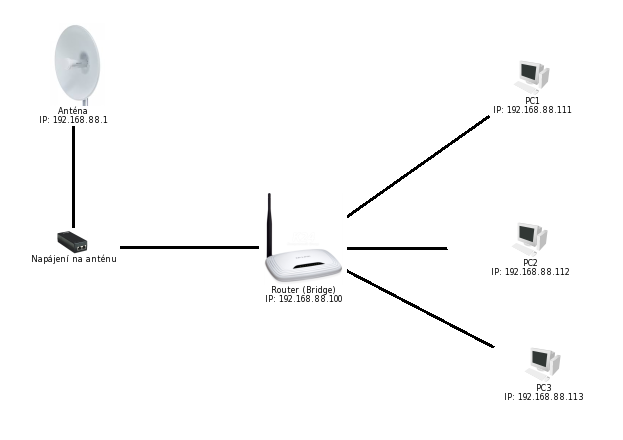
Simply enable WLAN, give the router a suitable IP address from the range assigned by the antenna, plug the incoming cable into a yellow port, and disable the DHCP server. Voilà. That is all. The guide is here:
✨ NAT
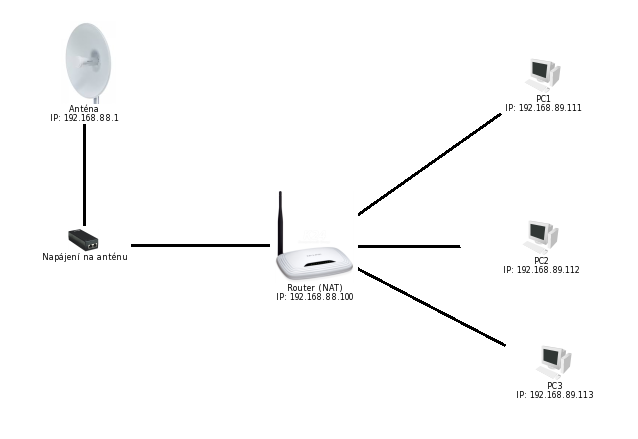
To hide the home network, select dynamic IP in the WAN section, choose a LAN IP address, enable the DHCP server, and plug the incoming cable into the blue port.
✨ More Complex Architectures
But what if two routers need to be connected to each other? There are several options.
✨ BRIDGE + BRIDGE Combination
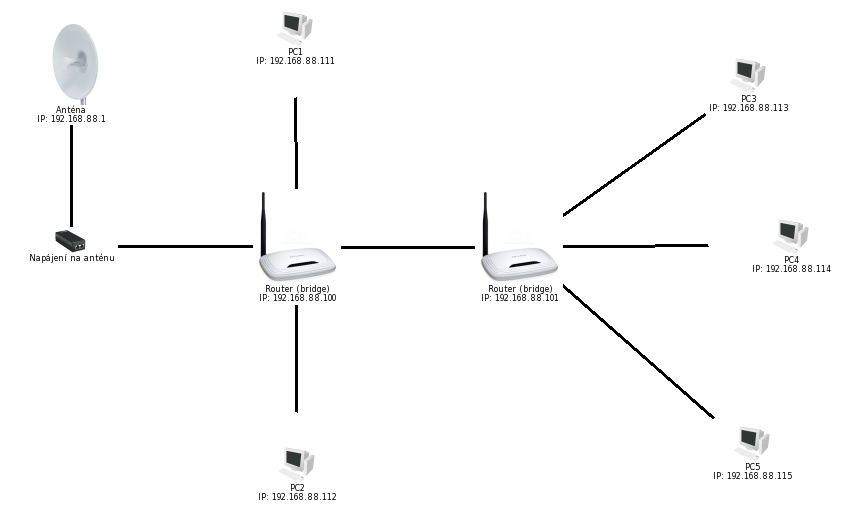
In this case, the first router uses bridge mode and the second one does too. The second router must be given a different IP address, not the same one as the first. As the image shows, all machines are on the same subnet.
✨ NAT + BRIDGE Combination
In this case, the first router uses NAT and the second one uses bridge mode. Notice how the machines' IP addresses change. When viewed from the antenna side, only the first TP-Link device along the route is visible on the subnet, because anything behind NAT cannot be seen.
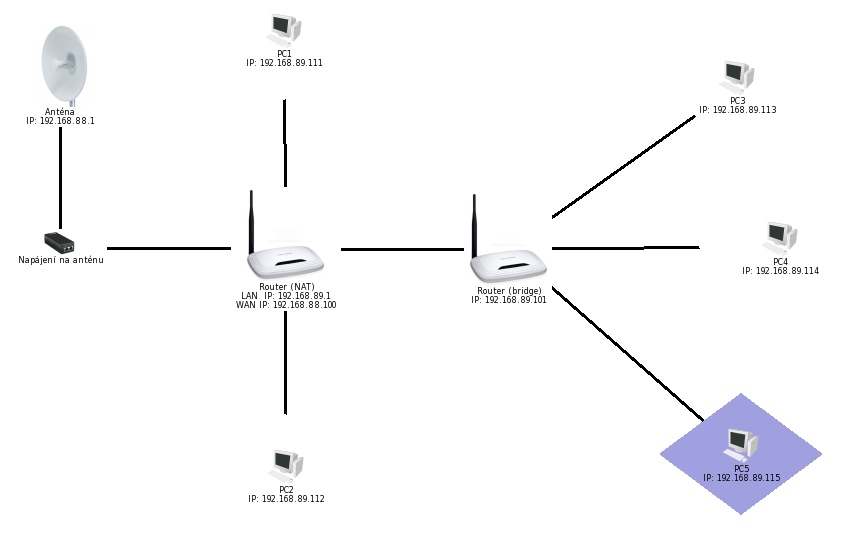
✨ NAT + NAT Combination
Is putting both the first and second router behind NAT really a good idea? The author considers it unnecessary in 90% of homes. It may be useful for someone with specific requirements.
🌐 Alternative Way to Connect Two Routers Using a Switch
Sometimes it is difficult to run a cable from one router to another. A switch can therefore be used to split the signal from the antenna into other rooms.
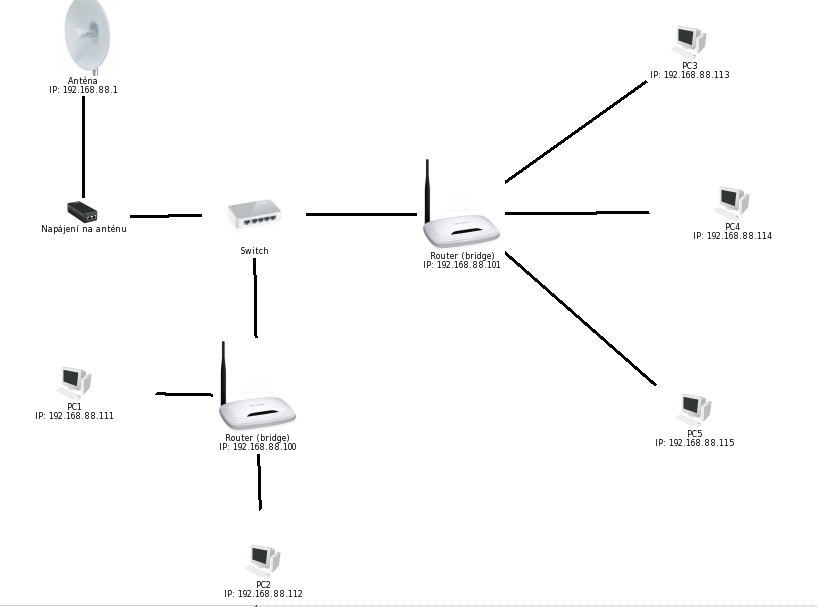
A cable is a cable, but what if the routers cannot be connected by one? Sometimes a building has no conduit, or its layout is so intricate that running a cable is impossible. In older houses, nobody anticipated 50 years ago that the internet would become so essential that everyone would have it.
✨ WIRELESS SOLUTIONS
There are several options when no cable can be used:
🌐 Extender
This is a device that plugs into a power outlet, receives the incoming signal, and repeats it. It should go without saying that the device plugged into the outlet must be able to receive the signal from the router it is meant to reach. :-) In any case, it is a relatively expensive solution. The author does not find the price particularly attractive.
🌐 ROUTER + WDS BRIDGE
Some TP-Link routers support this. It provides the repeater function described above directly as part of the router. In practice, simply enable WDS bridge on the device, and it will bridge and extend the home network. This is an acceptable solution. All it requires is one dual-antenna router, such as a WR 841, followed by any router—for example, a WR 741.
🔍 NETWORKING OVER ELECTRICAL WIRING
The author personally finds this the least interesting option, but it exists. It may work as an emergency solution, but compared with two routers it is expensive enough that the author would consider it only where there truly is no alternative.