Console Applications
TL;DR ✨
Some things simply break established rules. Then there are things that have worked for decades and are regarded as the standard way to work. Nobody questions them. There is nothing to question in the following overview of terminal programs. Life without them would be painful.
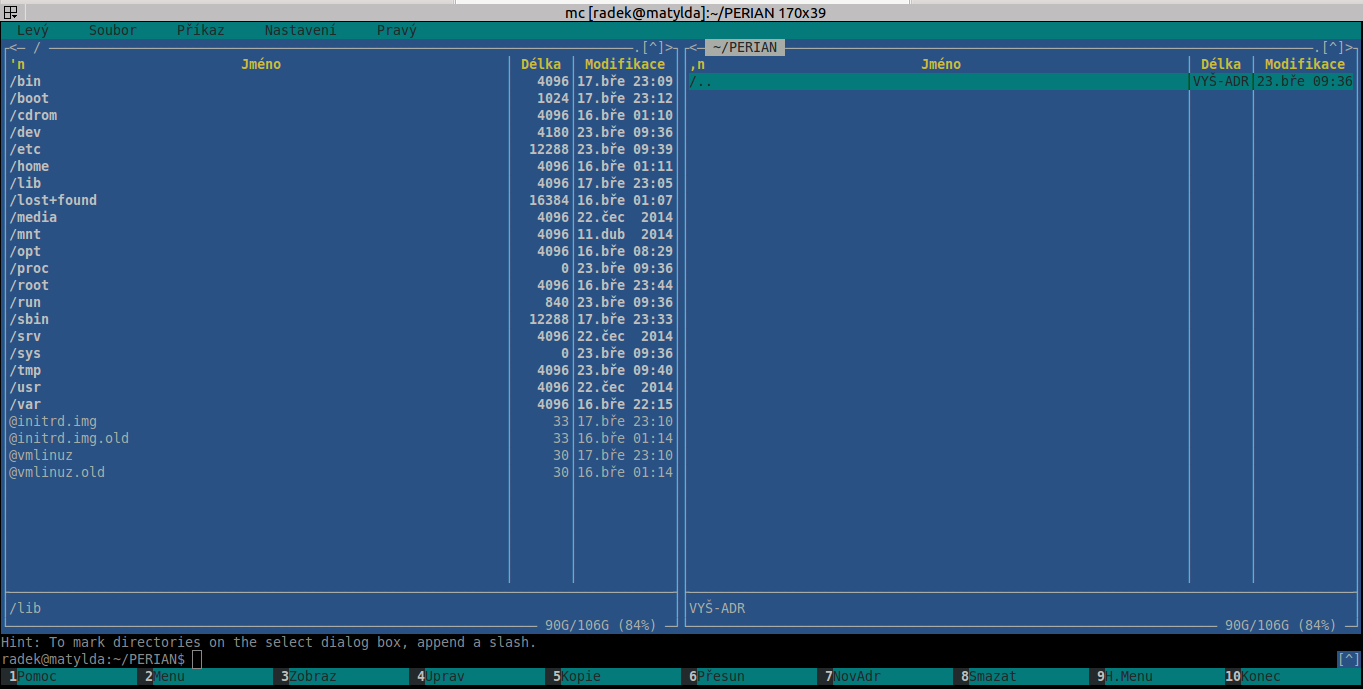
After installing MC and entering the command "mc" in the terminal, a new world of working possibilities opens in a typical DOS-style graphical interface, excellent because it does not distract the user. Once familiar with MC, it is worth learning a few basic keyboard shortcuts. A list collected from some website is available here: MCshortcuts (sorry about the copyright).
Some things simply break established rules. Then there are things that have worked for decades and are regarded as the standard way to work. Nobody questions them. There is nothing to question in the following overview of terminal programs. Life without them would be painful.
1. Midnight Commander
This utility is used for quick and efficient work on a remote or local machine. It can do everything needed in day-to-day work, from shortcuts for remote logins to organizing directories on the local machine. It handles everything that would otherwise take far too long to do the "normal" way. Learning to use MC can save several percent of the time spent on routine work every day.
After installing MC and entering the command "mc" in the terminal, a new world of working possibilities opens in a typical DOS-style graphical interface, excellent because it does not distract the user. Once familiar with MC, it is worth learning a few basic keyboard shortcuts. A list collected from some website is available here: MC_shortcuts (sorry about the copyright).
2. Terminator
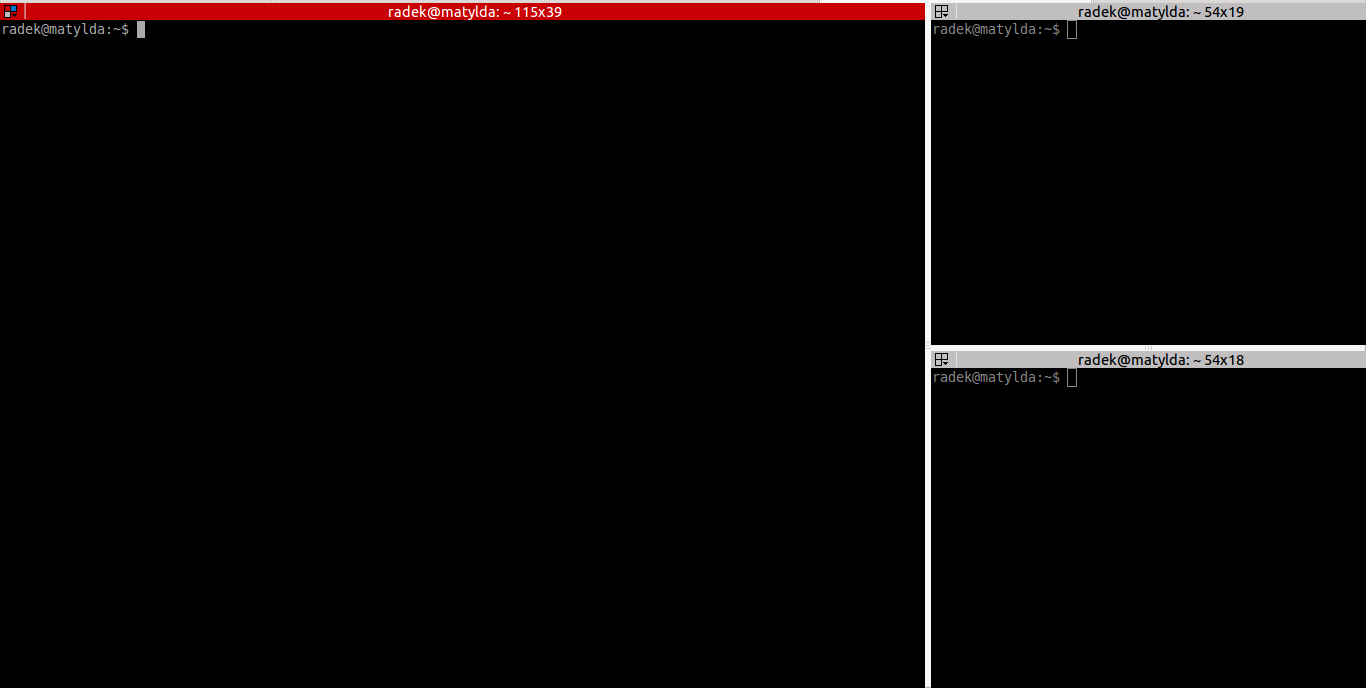
Simply opening another terminal window becomes increasingly inconvenient with every additional click. That is precisely why Terminator exists. Instead of creating more windows and placing terminal tabs side by side, it creates them directly within a single terminal. It can also group multiple tabs beneath one another and organize them.
3. CSSH
Anyone administering multiple machines and performing the same console operations on them will find cluster SSH invaluable. CSSH opens each remote machine in a new terminal window, and anything typed into one window is entered into the other open windows as well. If something specific is needed in one window, simply click it and enter the command separately without copying it to the others.
4. SSHFS
SSHFS can mount a remote directory over SSH as a local folder. Install the package and create a mount point first:
sudo apt-get install sshfs
mkdir -p ~/remote-directory
sshfs login@server:/path/to/remote/directory ~/remote-directory
Unmount the directory after use with:
fusermount -u ~/remote-directory
5. CURLFTPFS
CURLFTPFS works similarly to SSHFS but uses FTP. Its basic syntax is:
mkdir -p ~/ftp-directory
curlftpfs login@server ~/ftp-directory
An appropriate entry in /etc/fstab can automate the mount. Credentials should
not be embedded directly in a publicly readable configuration file.
FTP is not encrypted
Prefer SSHFS when the server supports SFTP. Standard FTP does not encrypt credentials or transferred data.
6. vi/vim
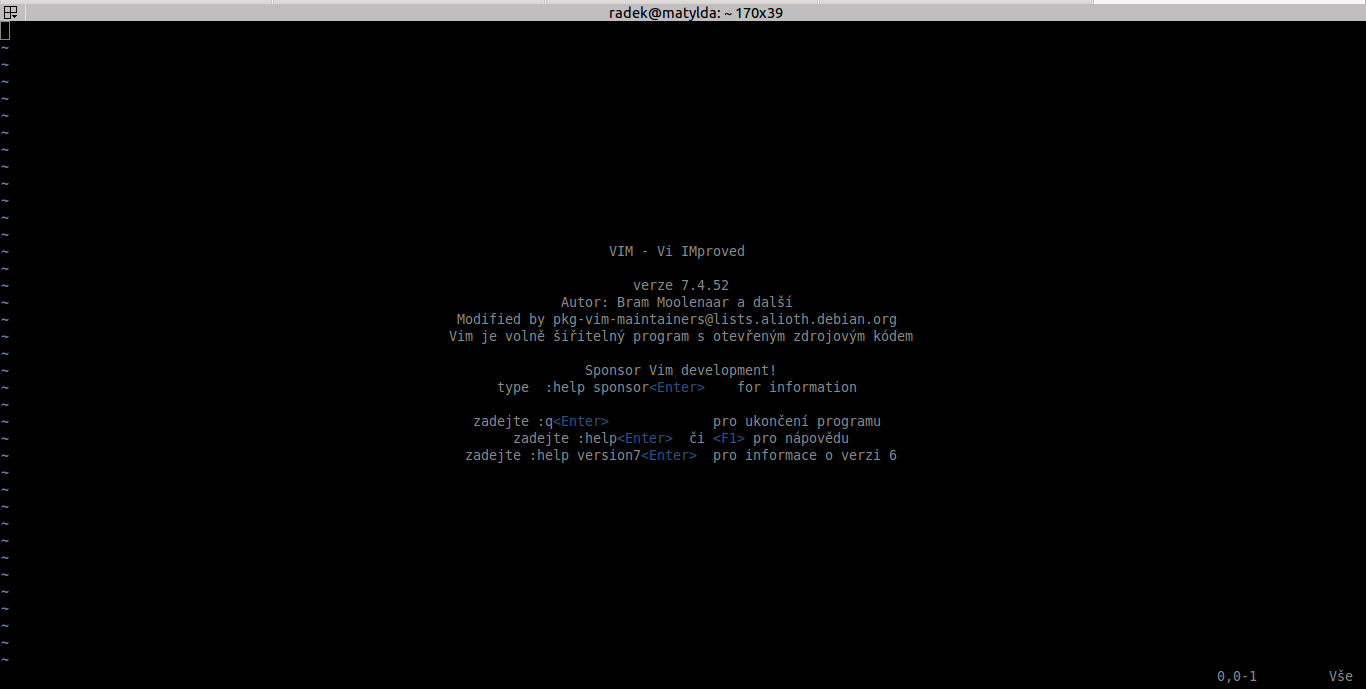
vi and vim are painful for every beginner. The author's first reaction to vi was extremely vulgar. Over time, however, he became accustomed to vi and now regards it as the standard. The hardest part is learning the keyboard shortcuts. Once they have been mastered, everything else is easy, and a better editor is hard to find. Its advantage is universality: it is available on every Linux distribution.